
HubSpot / How to add video to HubSpot emails
How to add video to HubSpot emails.
Record a personal video from a HubSpot contact or deal, put it in a HubSpot email, and let every view update the contact and start a workflow.
What you'll need.
Set up once, then it’s two clicks per email.
A coReel account
HubSpot counts as one CRM integration: Free includes one, Essentials two, Teams and Enterprise unlimited.
Google Chrome
With the coReel Chrome extension installed and signed in.
HubSpot connected
An owner or manager connects your company’s HubSpot portal in coReel, and each rep adds their own HubSpot login so activity is logged under their name.
Step by step.
HubSpot sends the email; coReel adds the video and tracks it.
Step
What to do
1. Connect HubSpot
In coReel, open Integrations. An owner or manager clicks HubSpot – Company connection; each rep then clicks HubSpot – Your own login.
2. Open a contact or deal
In HubSpot, open the contact or deal you’re writing to. The coReel button sits next to the email button.
3. Record or insert
Click the coReel button, or in HubSpot’s email composer open Insert and choose Record/Insert with coReel. Record a new video, insert your last recording, or pick an existing one.
4. Check the email
coReel adds a preview of your video, linked to your watch page, with HubSpot’s contact merge tags so each contact’s views are tracked.
5. Send from HubSpot
Add your subject and a short note, and send from HubSpot as usual.
6. Let views do the follow-up
Views and replies update the contact’s coReel properties, and can enroll the contact in a HubSpot workflow.
What you'll see in HubSpot.
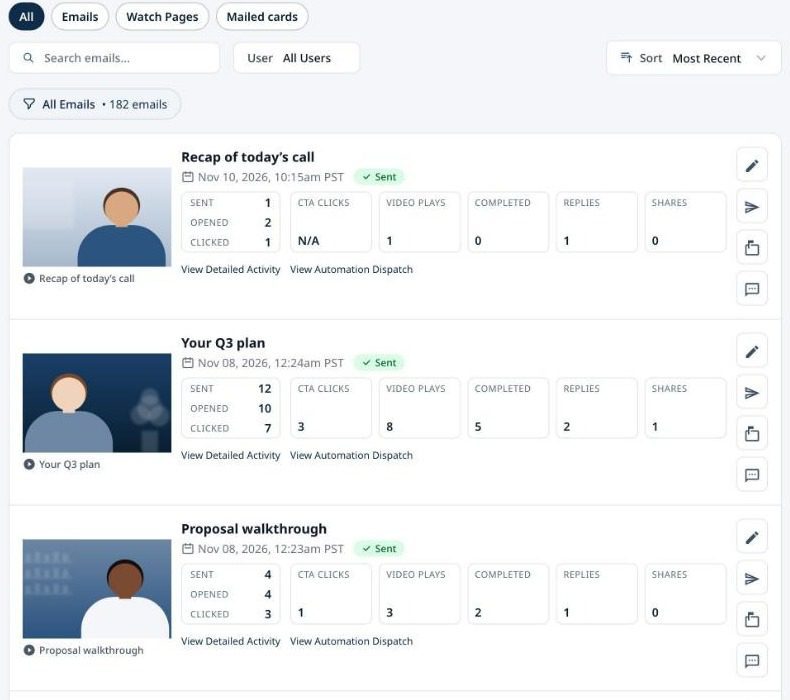
Video activity lands on the contact, where your team already works.
Three contact properties
coReel: last video sent, coReel: last video engagement, and coReel: last engagement type. Filter lists and views on them, or use them in reports.
Workflows on every signal
In coReel’s HubSpot automation settings, pick a workflow for each signal: opens, plays, watches 90% or more, clicks the button, replies, shares, or scans a mailed card.
No extension? Copy and paste
Record in the coReel web app, choose Copy Rich Text or Copy HTML, and paste the video email into HubSpot’s email editor or a template.
Video in HubSpot emails, answered.
Can you add a video to a HubSpot email?
Yes. With coReel you can record a video from a HubSpot contact or deal, or from the composer’s Insert menu, and add a tracked preview to the email before you send it from HubSpot.
Does the email come from HubSpot?
Yes. You send it from HubSpot as usual. coReel adds the video and tracks it; it doesn’t send through HubSpot itself.
Where do video views show up in HubSpot?
On the contact’s coReel properties: last video sent, last video engagement and last engagement type. They’re written through each rep’s own HubSpot login.
Can a video view start a HubSpot workflow?
Yes, on HubSpot tiers that include workflows. Choose a workflow for each signal in coReel’s HubSpot automation settings, and the contact is enrolled when it happens.
Does it work with HubSpot templates and sequences?
The coReel button also appears in the composer’s row of templates, sequences and documents, and the copied video email can be pasted into a template.
Keep going.
See everything coReel does with HubSpot, read our video prospecting guide, or see how to log video views in Salesforce.