
Mailed cards are paid from your account’s mail balance: a prepaid amount in dollars that your whole team draws from. There’s nothing to pay per order and no surprise invoices. You add balance when you need it (or let it reload automatically), and every card shows its exact price before you mail it.
Business and Premium plans also include an amount for cards every month.
How your balance works #
Your balance has two parts:
| What it is | Does it expire? | |
|---|---|---|
| Included this period | The amount your plan includes each billing period: $5 a month on Business, $10 a month on Premium. Essentials has no included amount. | Yes. It resets at the start of each billing period, and unused included amount doesn’t roll over. |
| Balance you added | Money you’ve added yourself. | No. It stays until you use it. |
When you mail a card, we use your included amount first, then the balance you added. The order summary shows exactly which was used.
The balance belongs to the account, not to each person, so everyone on your team who can mail cards draws from the same balance. Owners and managers can set a monthly limit per user; see Set up mailed cards for your team.
Step 1 — See your balance #
- Open My Account.
- Scroll to Mail balance.
- You’ll see Available now, your Included this period amount with the date it resets, and the Balance you added.
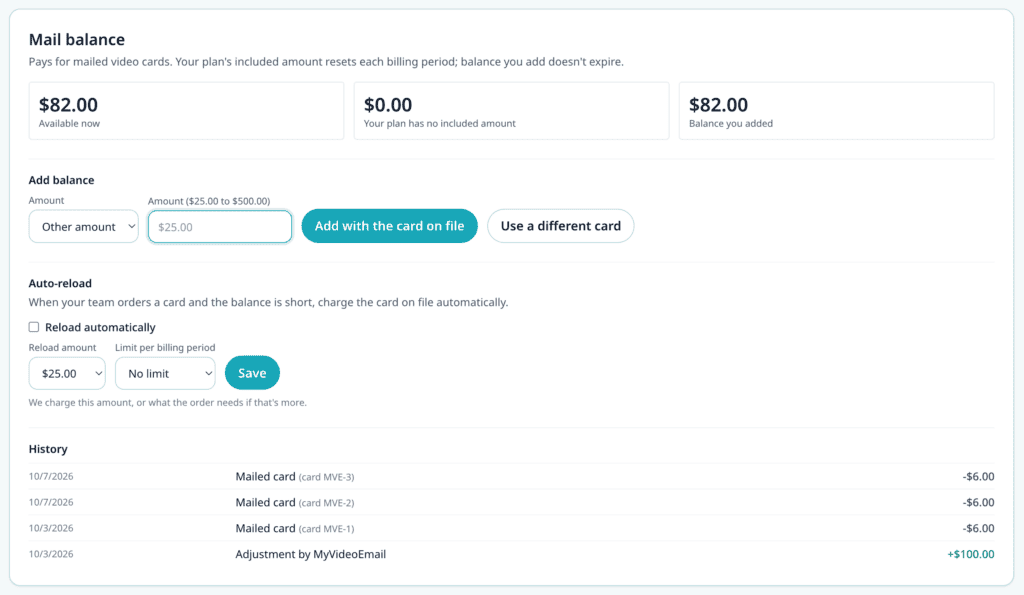
If you’re a user (not an owner or manager), you’ll see a note that your account owner manages the mail balance.
Step 2 — Add balance #
Owners and managers can add balance.
- Under Add balance, choose an amount, or choose Other amount and type one.
- Click Add with [your card] to use the card on file, or Use a different card.
- Click Pay.
Success check: You see “[amount] was added to your mail balance,” and Available now goes up.
If your bank asks to confirm the payment, choose Use a different card to complete the confirmation.
Step 3 — Turn on auto-reload (optional) #
Auto-reload keeps cards going out without anyone having to top up by hand. When someone orders a card and the balance is short, we charge the card on file automatically.
- Under Auto-reload, switch on Reload automatically.
- Choose a Reload amount. We charge this amount, or what the order needs if that’s more.
- Optionally set a Limit per billing period, so reloads never go past a total you’re comfortable with.
- Click Save.
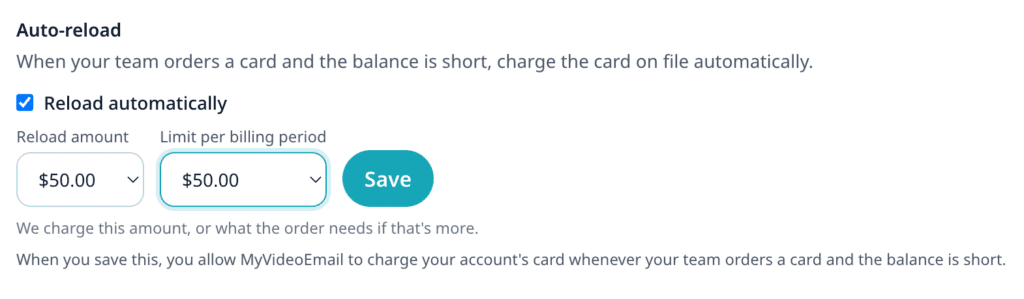
Success check: You see “Auto-reload settings saved.” When a reload happens, it shows in History as Automatic reload.
Step 4 — Check your history #
History lists every change to the balance: included amounts added and expired, balance you added, automatic reloads, each mailed card, and any refunds. Card charges show the order number they belong to.
Tips and best practices #
- Set a modest reload amount with a limit. For example, reload $50 at a time with a $250 limit per period. Cards keep flowing and spending stays predictable.
- Cancelled cards are refunded to your balance, so you never lose money on a card that didn’t go out.
- Custom card designs are also paid from the mail balance, up front. See Order custom card designs.
Troubleshooting #
Auto-reload says it’s paused. Auto-reload pauses when a charge fails: the card was declined, your bank wants to confirm charges, or there’s no card on file. Update your card (or add balance once with Use a different card), then switch auto-reload back on.
A card order said “Automatic top-up has reached this month’s limit.” Your auto-reload limit for this billing period has been used. Add balance by hand, or raise the limit.
My included amount went down to $0 even though I didn’t mail anything. The included amount resets at the start of each billing period, and unused amount expires. That shows in History as Unused included amount expired.
I’m a user. How do I get more balance? Ask your account owner or a manager. They can add balance or turn on auto-reload.


