
A mailed card isn’t a shot in the dark. Every card has its own tracked QR code, so you can see when it’s been mailed, when your contact scans it, and what they did on your watch page. A scan can also tag the contact or start a workflow in your CRM, so your follow-up happens while they’re still thinking about you.
Step 1 — Find your cards #
- Open My Emails.
- Click the Mailed cards tab.
Each card has its own row, titled Card to [name] with a Mailed card chip. The row shows the address it’s going to, its status, and how the contact has engaged: Scans, plays, CTA clicks and replies.
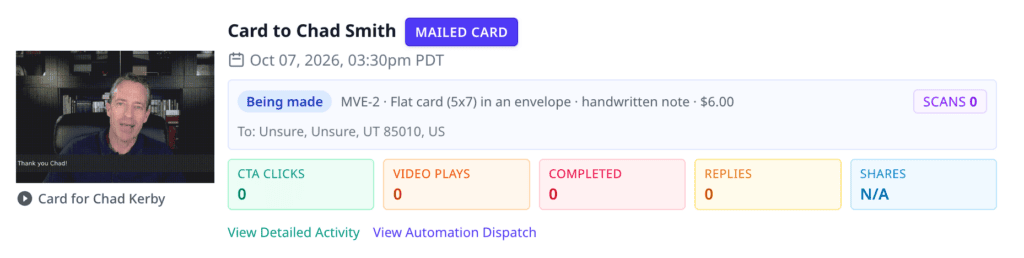
Step 2 — Follow its status #
| Status | What it means |
|---|---|
| Order received | We have your order. You can still edit the address or cancel. |
| Being made | Our team is printing (or, for video cards, loading) your card. |
| Ready to mail | Your card is made and about to go out. |
| Needs your attention | We’ve paused the card and need something from you, usually an address fix. |
| Mailed | It’s in the mail. Video cards show a tracking number here. |
| Cancelled | The card was cancelled and its cost returned to your mail balance. |
| Not mailed | We couldn’t mail this card. Its cost was returned to your mail balance. |
| Returned to sender | The postal service sent it back, usually because of the address. |
We email you when the order is received, when it’s mailed, and if it’s paused, cancelled, not mailed or returned.
Step 3 — Fix or cancel a card #
While a card is Order received or Needs your attention:
- Click Edit address (or Fix address on a paused card), correct it, and click Save address. For a paused card, click Save and send to our team to put it back in the queue.
- Click Cancel card to cancel it. The full cost is returned to your mail balance.
Once a card is being made, it can’t be changed or cancelled.
Step 4 — See when a card is scanned #
When your contact scans the card’s QR code, they land on your branded watch page, and the scan is counted on the card’s row.
- A scan counts as engagement for that contact, just like a click on an email.
- Plays, CTA clicks and replies from the watch page show on the same row.
- Switch on Mailed card scanned in Settings → Notifications to be alerted the moment it happens.
Step 5 — Trigger your CRM on a scan #
Scanning a card is a strong buying signal. Use it.
- Go to Settings and open your automation settings for your connected CRM.
- Find the row Scans the QR code on a mailed card.
- Choose what should happen:
- Keap or Zoho: apply a tag.
- HighLevel: apply a tag and/or start a workflow.
- HubSpot: start a workflow.
- Save.
You can also set or change this for a single card on the send step, alongside your other automation choices.
Success check: The next time a contact scans a card, the tag or workflow fires on their CRM record. It fires once per card, so a second scan doesn’t start the workflow again.
Tips and best practices #
- Make the scan the start of a sequence. For example: tag “Scanned mailer” → a task for the rep to call within the hour → a follow-up email the next day.
- Use a call to action on the watch page. Your contact has your attention; give them the next step, such as booking a meeting. See Set up watch-page calls to action.
- Video cards can point the QR code straight at your call to action. See Send a video card with a built-in screen.
Troubleshooting #
My card says “Needs your attention.” Open the row to read what we need (shown under “We paused this card. Here’s what we need:”). Usually it’s an address detail. Fix it and click Save and send to our team.
I’m testing a card myself. Why didn’t my scan count? We filter out activity that looks like yours, such as a scan from the same network you sent the card from, so it doesn’t inflate your contact’s engagement. Scan on mobile data instead of your office Wi-Fi. Remember that a counted scan fires your automations on that contact, so test with a card mailed to yourself.
The card was returned to sender. The postal service couldn’t deliver it. Check the address and mail a new card from the email’s row in My Emails.


