
Make every card you mail unmistakably yours. Order cards with your own design, such as your logo, brand colors or a campaign theme, printed in bulk. We produce them and keep them in stock for your account. Then, whenever anyone on your team mails a card, your design is right there to choose.
You pay for the run up front from your mail balance. After that, each card is already paid for: when you mail one, you’re only charged for extras like handwriting and paid postage.
Before you start #
- You must be an owner or manager to order designs.
- Your mail balance needs to cover the order. See Your mail balance.
- Have your artwork ready, or download our print template first (Step 2).
Step 1 — Choose a card #
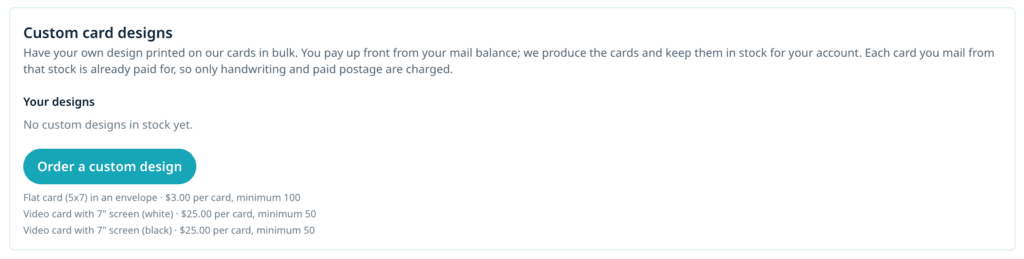
- Go to Settings and find Custom card designs.
- Click Order a custom design.
- Pick the card you want your design on. Each option shows its price per card, its minimum quantity and any one-time setup fee. Printed cards and video cards can both be offered.
Step 2 — Download the print template #
Click Download the print template (PDF). It shows the card at its real size with bleed and safe-area guides, plus our print instructions. Design inside the safe area so nothing important gets trimmed.
What you design: your artwork goes on one side of the card. We still print the other side with your video’s thumbnail, your note and the QR code each time you mail one, so every card stays personal and trackable.
Step 3 — Place your order #
- Enter a Design name your team will recognize, for example Spring open house.
- Enter How many cards (at least the minimum shown).
- Under Design files, click Add files and upload your artwork. We accept PDF, AI, EPS, PSD, SVG, PNG, JPG, TIFF and ZIP files.
- Add Notes for our team: placement, colors, finishes or deadlines.
- Check the total: the cards (quantity × price per card) plus the Design setup fee.
- Click Place order and pay.
Success check: You see “Order [number] placed.” We email you after our team reviews your design.
Step 4 — Follow your order #
Your order appears under Orders in Custom card designs:
| Status | What it means |
|---|---|
| Received | We have your order and files. |
| In review | Our team is checking your artwork. |
| Changes needed | We need something from you. Read the note, then send new files or a reply. |
| In production | Your cards are being printed. |
| In stock | Your cards are ready to mail. |
If we ask for changes, add new files and/or a note under Send new files or a note, and we’ll review it again, then click Send for review.
You can Cancel order while it’s Received or Changes needed. The full amount goes back to your mail balance.
Step 5 — Mail a card with your design #
- Start a card as usual: choose a contact, record your video and click Mail a card.
- Under 1. Choose a card, pick the tile marked Your design. It shows how many are left in stock.
- Write your note, confirm the address and click Mail this card.
Success check: The summary says Prepaid. You’re only charged for handwriting or paid postage if you chose them.
Step 6 — Reorder when you run low #
- In Settings → Custom card designs, find the design under Your designs, where you’ll see how many are in stock.
- Click Reorder, choose a quantity and place the order.
Reorders skip the setup fee. New files are optional; add them only if you’re updating the artwork.
Tips and best practices #
- Design for the whole team. Everyone who can mail cards can use your stocked designs, so keep the artwork on-brand and leave personal details to the note.
- Run a campaign design. Order a themed run (an event, a season or a product launch) and mail it to your best prospects with a video for each one.
- Use the print template. Most delays come from artwork that’s the wrong size or too close to the edge.
Troubleshooting #
I don’t see Custom card designs in Settings. Only owners and managers can order designs.
Our order says “Not accepted.” We couldn’t produce that design. The reason is shown on the order, and the full amount was returned to your mail balance.


